Seller Guide
How to open your shop and sell products on FoodSansar
📋 Table of Contents
Create Your Account
Sign up for free in under 2 minutes
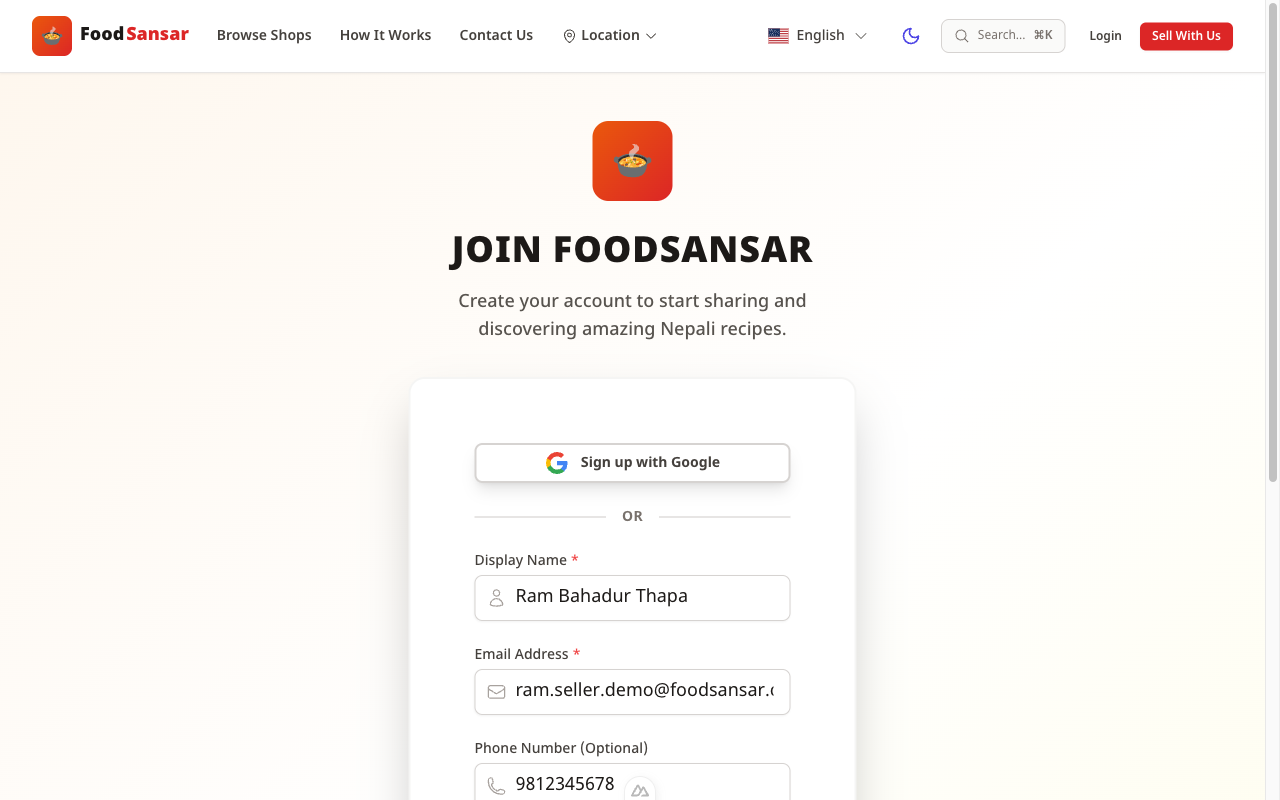
- ✓Go to foodsansar.com and click "Sign Up" in the top navigation bar.
- ✓Enter your full name, email address, phone number, and a strong password.
- ✓Click "Create Account". No payment or credit card required.
- ✓You will be logged in automatically after registration.
💡 Tip: Use a phone number you actively use — buyers will contact you directly via call or WhatsApp.
Screenshot
Choose "Seller" Role
Tell FoodSansar you want to sell products
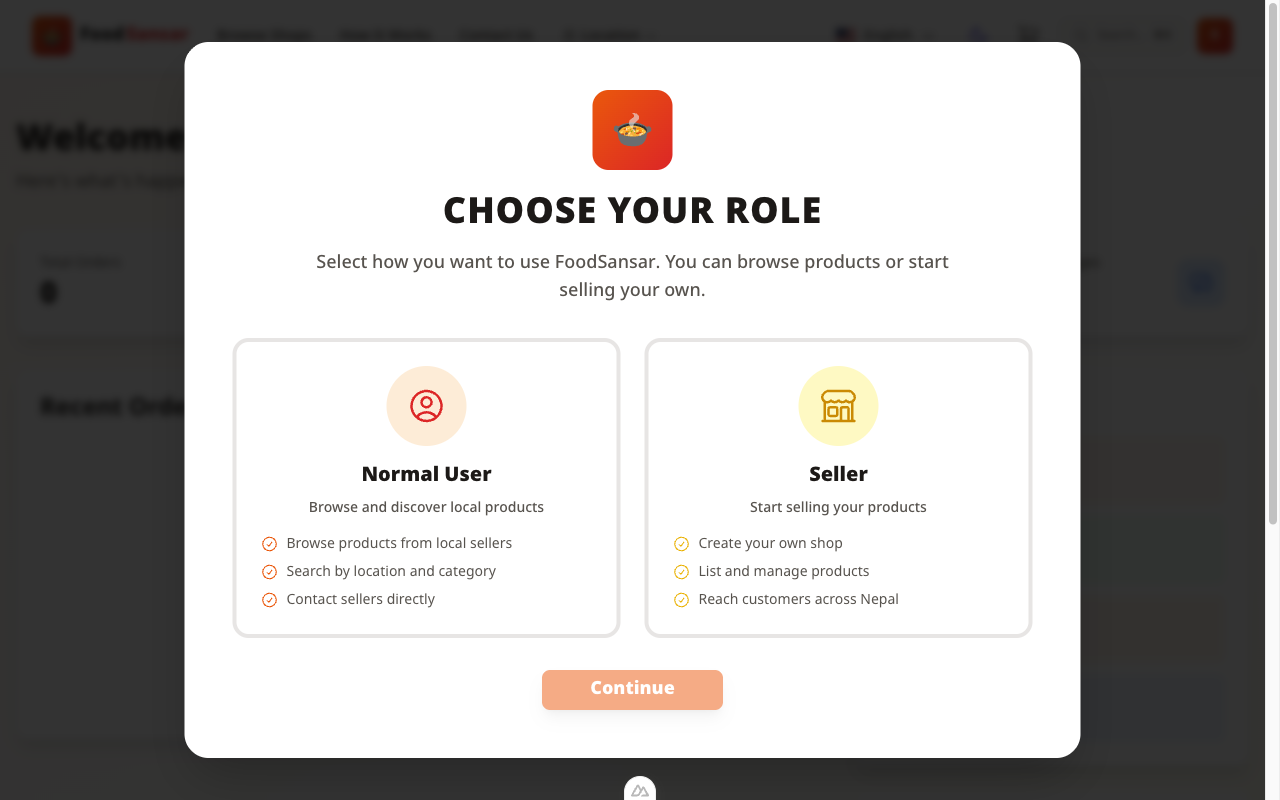
- ✓After signing in, a "Choose Your Role" screen appears.
- ✓Click the "Seller" card on the right side.
- ✓Click "Continue" to proceed to your seller dashboard.
- ✓You can always switch roles later from your account settings.
Screenshot
Set Up Your Shop
Fill in your shop details — takes about 5 minutes
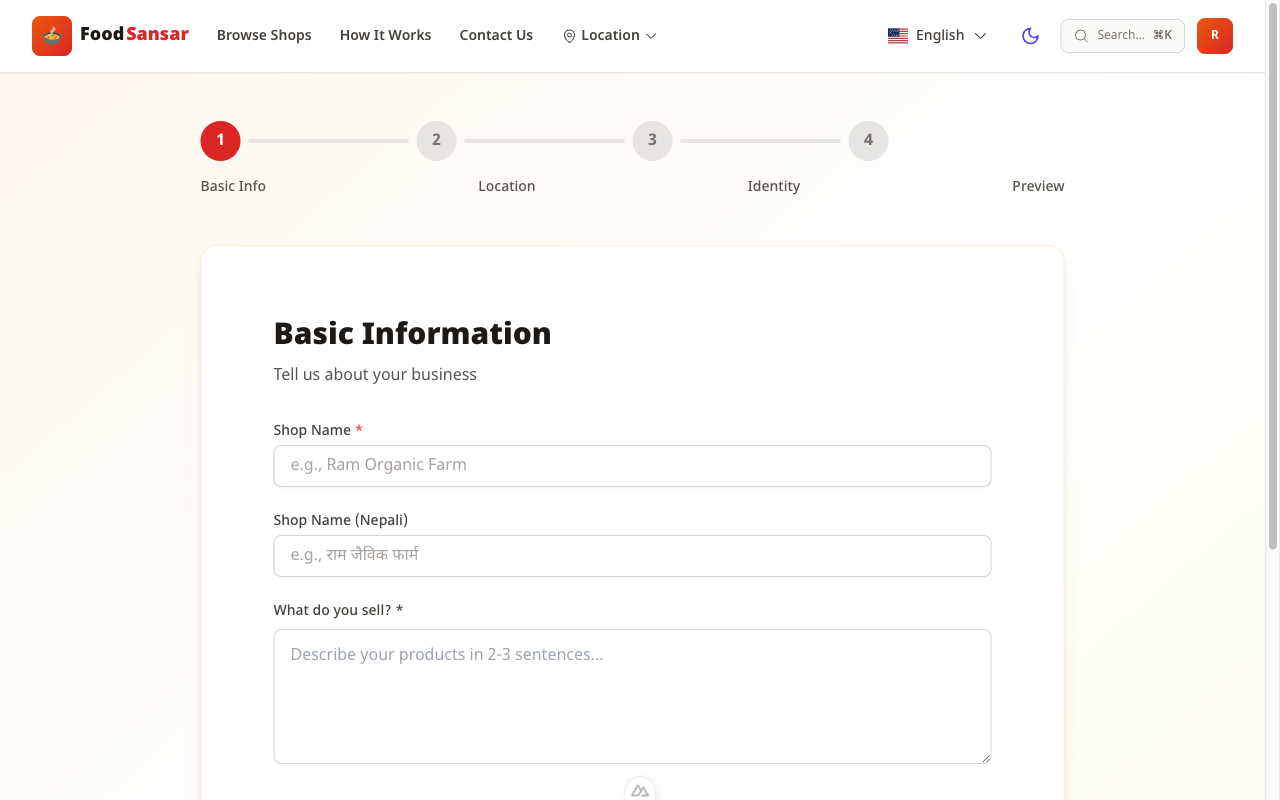
- ✓From your seller dashboard, click "Create Your Shop".
- ✓Step 1 — Basic Info: Enter your shop name (in English and Nepali), and a description of what you sell.
- ✓Step 2 — Location: Select your Province, District, and City. This helps local buyers find you.
- ✓Step 3 — Contact: Add your phone number and WhatsApp number for buyers to reach you.
- ✓Click "Submit for Approval". An admin will review and approve your shop within 24 hours.
💡 Tip: Write your shop description in both English and Nepali to reach more customers.
Screenshot
Your Seller Dashboard
Once approved, manage everything from one place
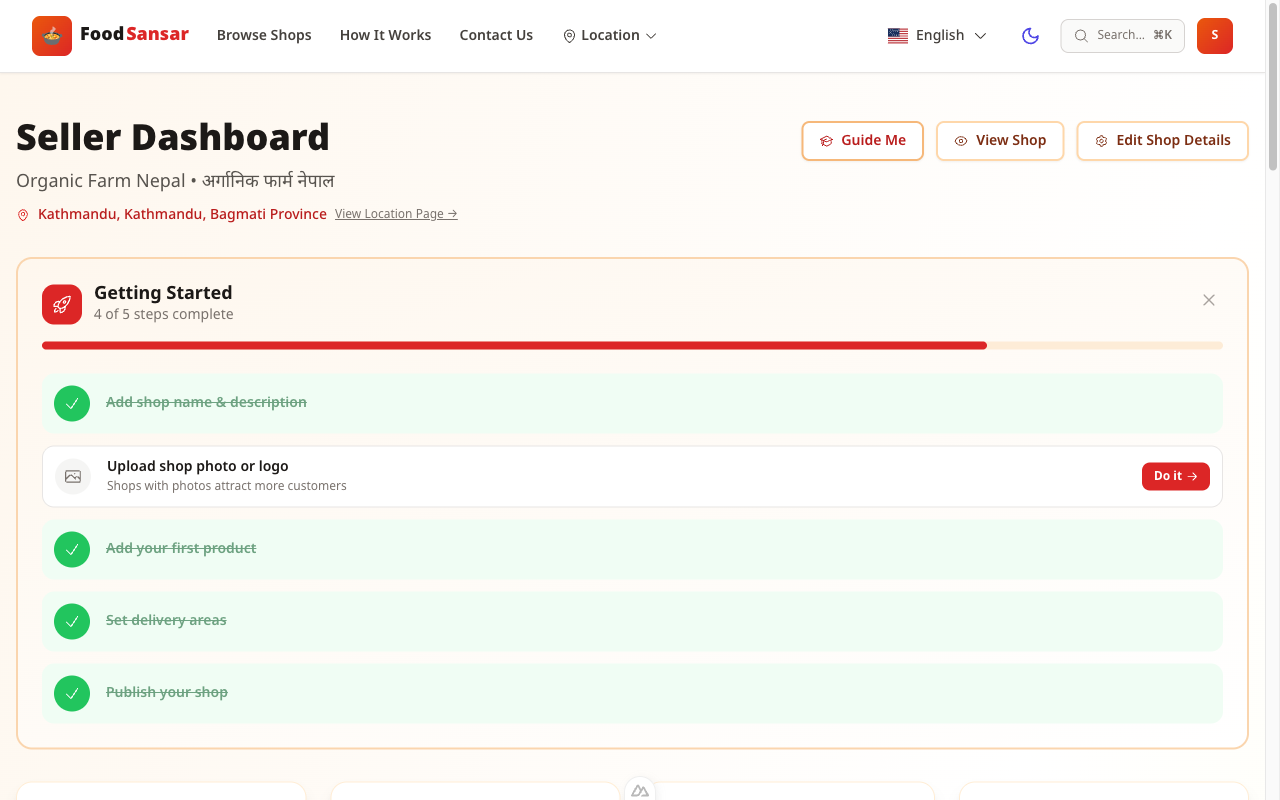
- ✓After approval, your dashboard shows your shop status, total orders, and quick actions.
- ✓Use "Quick Restock" to update quantities and prices from your phone.
- ✓Check your referral link to invite other sellers and grow the community.
- ✓The analytics card shows how many buyers viewed your shop this month.
💡 Tip: Publish your shop (toggle the "Published" switch) so customers can see it publicly.
Screenshot
Manage Your Products
View, edit, and organise all your listed products
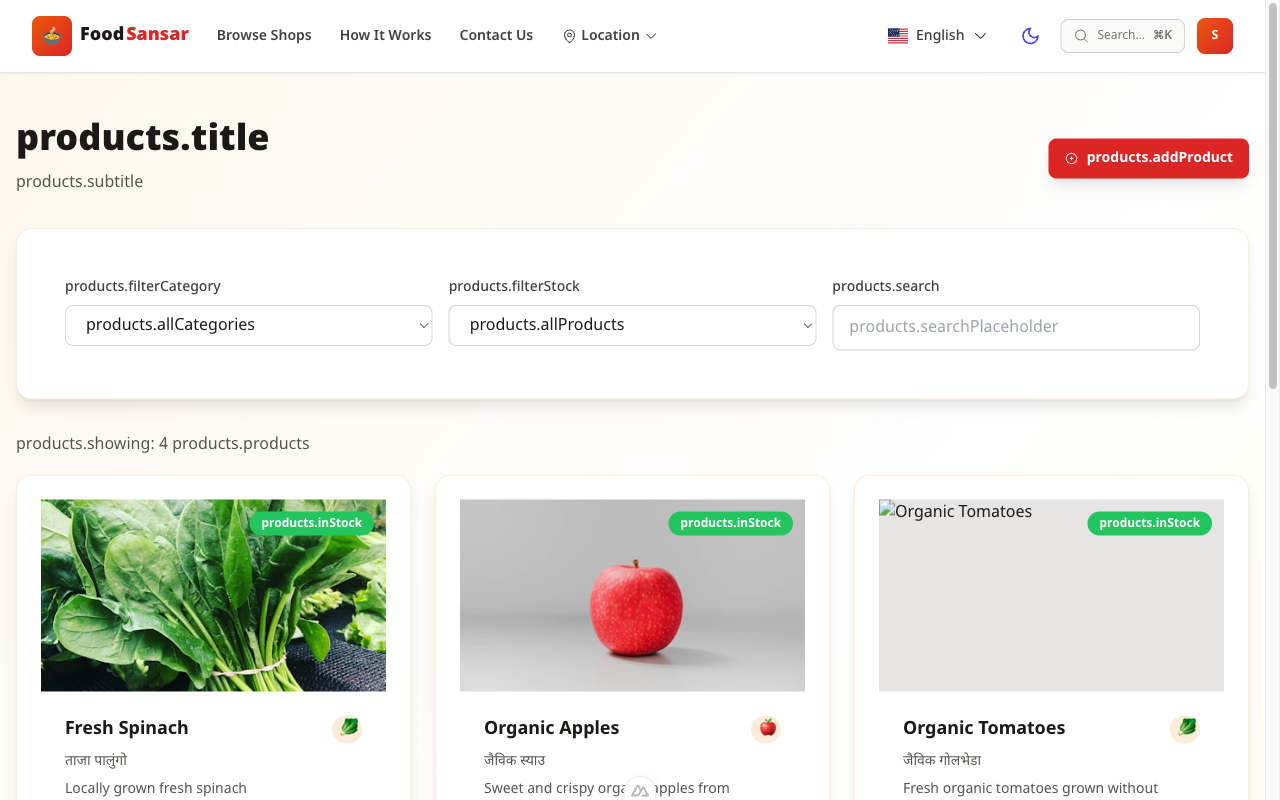
- ✓Go to Dashboard → Products to see all your listed items.
- ✓Filter by category or stock status to find specific products quickly.
- ✓Click the pencil icon to edit a product, or the trash icon to delete it.
- ✓Each card shows whether ordering is enabled or disabled for that product.
Screenshot
Add a New Product
List your vegetables, dairy, grains, or any farm product
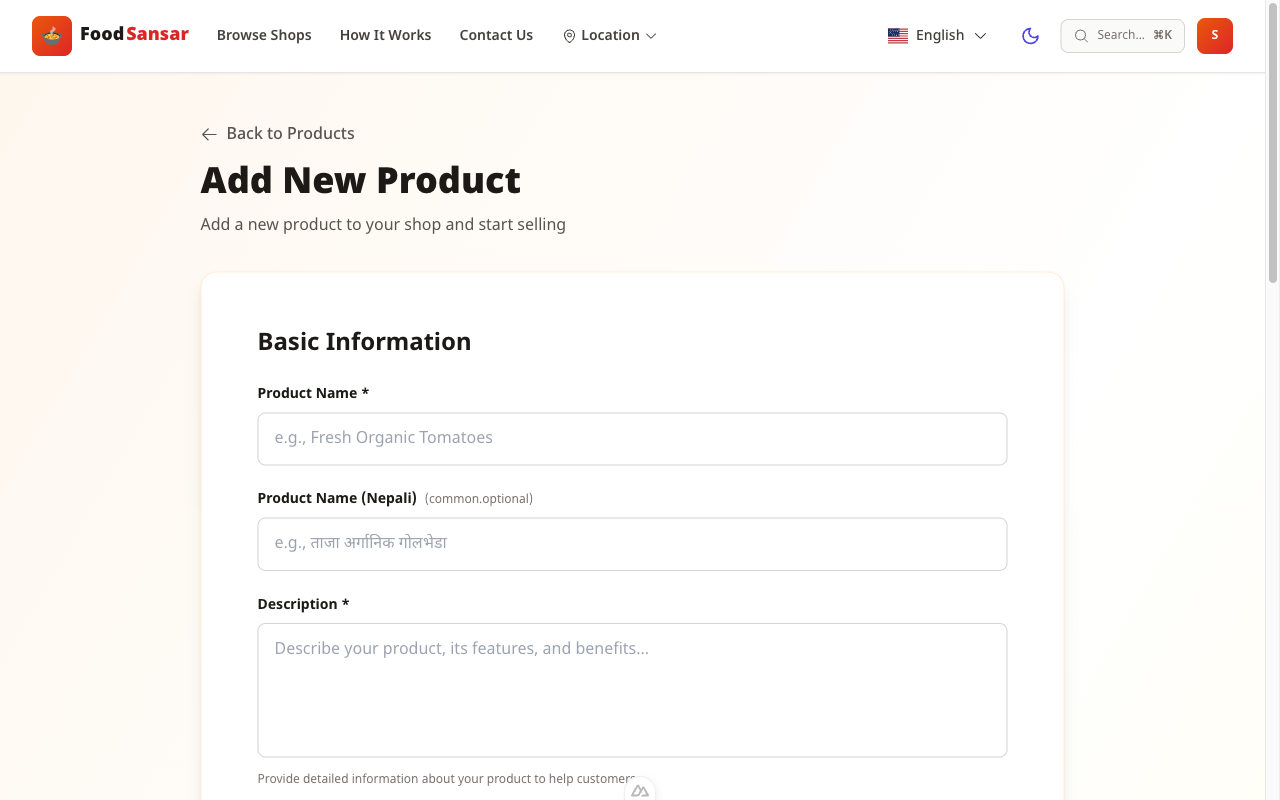
- ✓Click "Add Product" from the Products page.
- ✓Basic Info: Enter the product name in English and Nepali, and write a description.
- ✓Category: Choose the matching category (e.g. Vegetables, Dairy Products, Fruits).
- ✓Pricing: Set the price per unit (e.g. ₨120 per kg) and select the unit.
- ✓Inventory: Enter the available quantity and check "In Stock".
- ✓Enable Ordering: Check "Enable Ordering" so buyers can add the product to their cart.
- ✓Seasonality (optional): Enter the months the product is available, e.g. "June–August".
- ✓Click "Add Product" to publish it to your shop immediately.
💡 Tip: Add a clear photo of your product to get 3× more buyer enquiries. Use the image URL from your Google Drive or WhatsApp.
Screenshot
Congratulations!
Your shop is now live on FoodSansar. Customers across Nepal can find your products.
Need more help?
Contact Us